When Screens Become Uncomfortable
After a long stretch at a computer, eyes may feel tired, dry, or slow to refocus. Headaches and blurred vision can also accompany prolonged screen use. These symptoms are often linked to sustained close focus and reduced blinking, while glare, lighting, and screen position can add to discomfort, as Harvard Health Publishing explains.
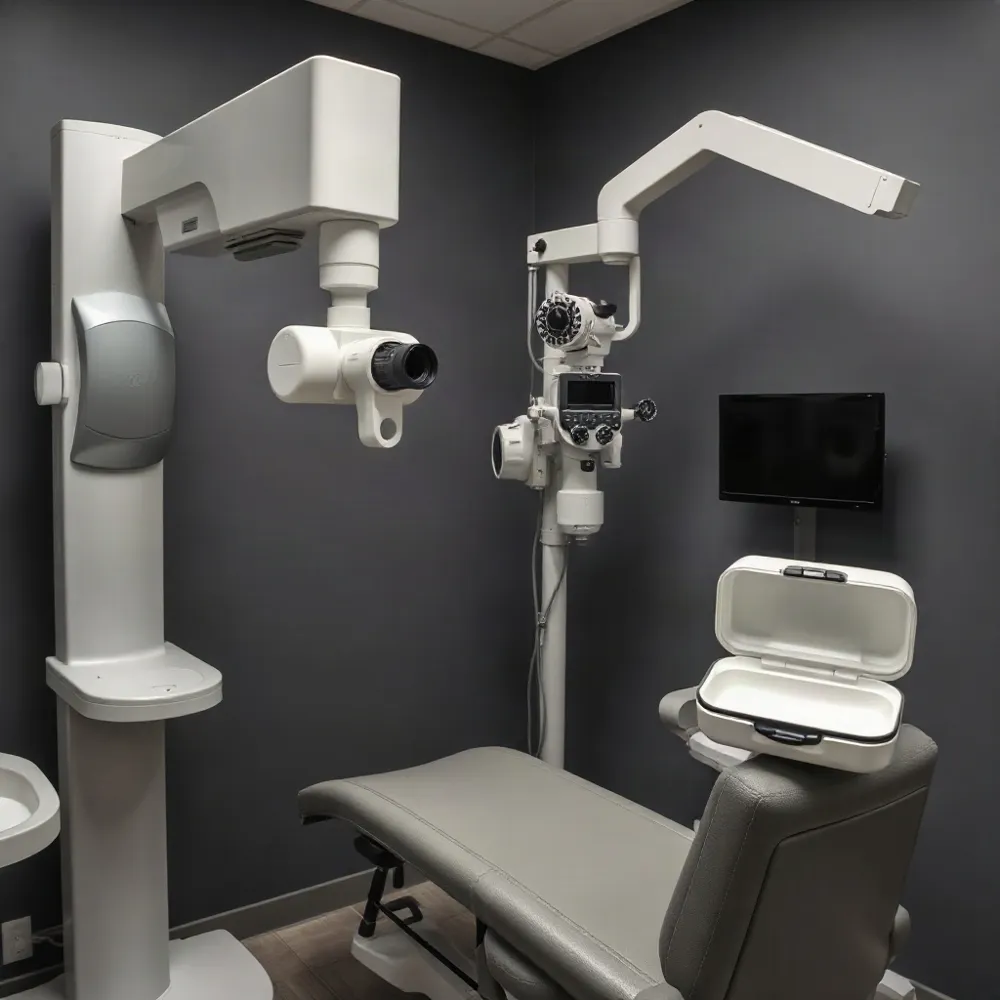
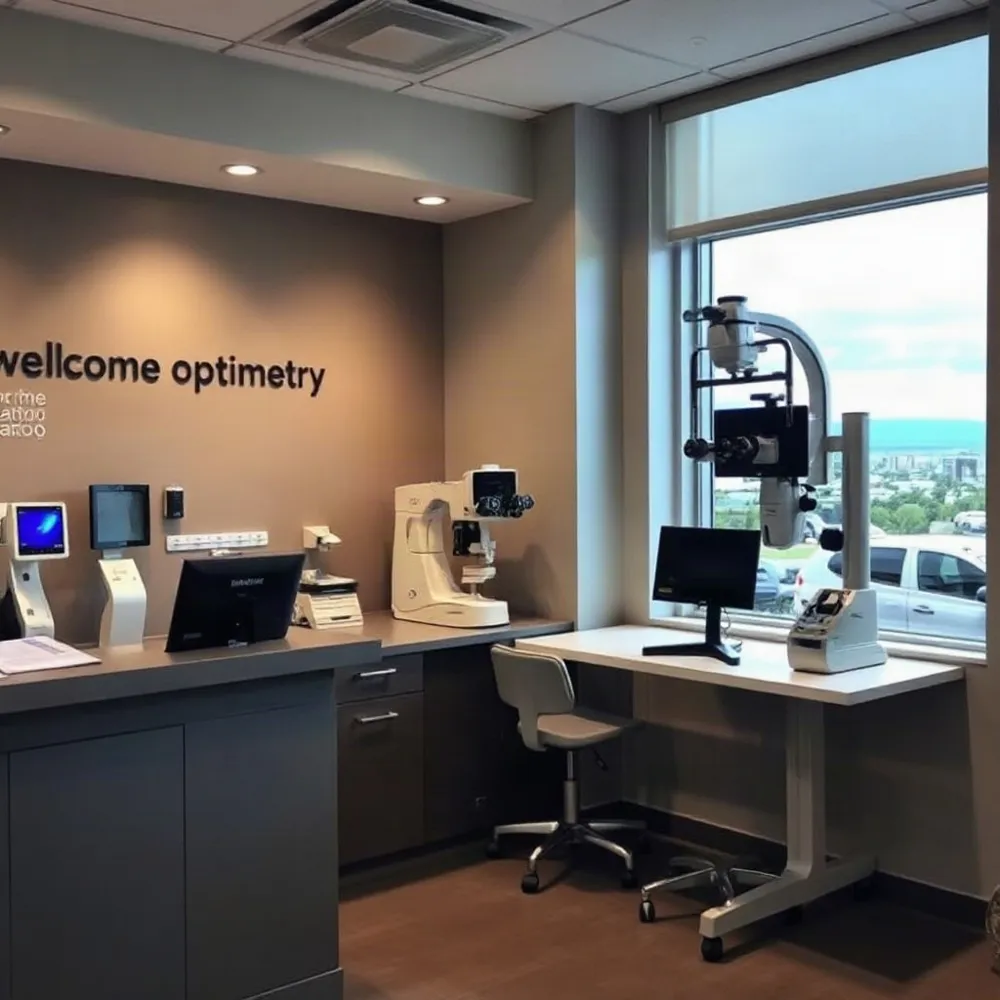
Visual comfort is part of workstation setup, not just screen time. A monitor that encourages leaning or an awkward viewing angle can affect posture as well as the eyes. At Apple Eye Care in El Paso, comprehensive eye exams and advanced diagnostics, including DRI OCT Triton, support individualized assessment when symptoms need more than a workspace adjustment.
This article covers practical habits, from taking breaks to adjusting screen placement and room lighting, that may help make computer work more comfortable. General tips cannot identify every cause of eye discomfort. If symptoms persist, recur, or include pain or ongoing blurred vision, seek personalized guidance from an eye-care professional.
Why Screens Can Strain the Eyes
 Digital eye strain, also called computer vision syndrome, can develop during prolonged close work on computers, phones, tablets, and other digital devices. Sustained focusing keeps the eyes working at near range, while glare, viewing distance, and screen angle can add to the effort. Screen text may also be harder to see clearly than print.
Concentration on a screen often means blinking less, which can leave the eye surface dry. Common symptoms include tired or irritated eyes, dryness or watering, blurred vision or trouble focusing, sensitivity to light, and headaches. Some people also notice aching behind the eyes or discomfort in the neck, shoulders, or back.
Vision and posture can affect each other. Someone who is struggling to see may lean toward the screen or tilt their head, adding strain to the body. The American Academy of Ophthalmology’s guidance on screen use notes that digital eye strain can cause discomfort but does not permanently damage the eyes. Persistent or painful symptoms still deserve attention. At Apple Eye Care, an eye exam can assess vision and help identify concerns that may contribute to screen-related discomfort.
Build Regular Breaks Into Screen Work
 The 20-20-20 rule offers an easy prompt during screen work: every 20 minutes, look at something about 20 feet away for at least 20 seconds. The change in focus is meant to interrupt sustained near work, not serve as a proven cure for digital eye strain. The American Academy of Ophthalmology’s screen-use guidance also recommends looking away and focusing on a distant object.
Evidence for the rule’s exact timing and distance remains limited. A review of the research found that a small study comparing 20-second breaks at different intervals showed no significant differences in symptoms or reading performance. Regular breaks are still a reasonable habit, but the ideal schedule is not established. Research on the 20-20-20 rule also notes limitations in the available studies.
For a brief reset, shift your gaze from the screen or book to a distant object, then blink deliberately to help keep the eye surface moist. If your eyes feel dry, artificial tears may offer relief. A short screen-free pause can also help when your schedule allows. At Apple Eye Care in El Paso, an eye exam can assess persistent dryness or blurred vision and whether vision correction may help.
The 20-8-2 schedule serves a different purpose: it breaks a half hour into 20 minutes sitting, 8 minutes standing, and 2 minutes moving. It aims to reduce prolonged inactivity, rather than specifically relieve eye strain. Treat these schedules as flexible reminders, not guarantees of prevention. If discomfort, headaches, dryness, or blurry vision keeps returning, Apple Eye Care offers personalized assessment.
Position the Monitor for Easy Viewing
 A monitor that is too close, too far away, or poorly aligned can encourage squinting or leaning. As a general starting point, place the screen directly in front of you, roughly an arm’s length away, or about 20 to 30 inches. If text is hard to read, increase its size rather than moving closer. OSHA’s monitor guidance recommends a viewing distance that lets you read comfortably while keeping your head and torso upright.
Set the screen so your eyes look slightly downward, with your gaze landing a few inches below its top edge. The exact height depends on your screen and seating position, so focus on keeping your head and neck neutral, shoulders relaxed, and back supported. Adjust the chair and desk as needed, and arrange the monitor to limit reflections from windows or overhead lights.
Keep the keyboard and mouse close enough that you can use them without reaching. If you work with two monitors, place the primary screen directly in front of you and the secondary one beside it. The setup should suit your tasks and posture, not force you into a fixed position. At Apple Eye Care in El Paso, an eye exam can help assess whether vision correction or other personalized care may be relevant when screen viewing remains uncomfortable.
Balance Screen Brightness and Room Light
A display that stands out sharply from its surroundings can make reading uncomfortable. Set screen brightness to feel close to the room’s overall light level, then increase text size or contrast if words are difficult to read. The American Academy of Ophthalmology’s computer-use guidance also recommends matching screen brightness to surrounding light and adjusting contrast.
Reflections from windows and overhead fixtures can obscure text and create glare. Move the monitor or adjust its angle to change what it reflects. Blinds can soften direct daylight, and redirecting a nearby lamp can keep its beam off the screen. If reflections remain, a matte anti-glare filter may help.
Aim for comfortable, even room lighting rather than working in darkness with a bright screen or sitting with a strong light source directly behind you. A warmer color setting in the evening is an option if it feels more comfortable, but it should not be treated as a proven way to prevent eye strain or eye disease.
If discomfort continues after changes to lighting and display settings, an eye exam can help assess whether vision correction or another eye-health concern is contributing. At Apple Eye Care in El Paso, personalized exams and advanced diagnostics, including DRI OCT Triton, support evaluation of individual vision concerns.
Know When Personalized Eye Care Helps
Can glasses help prevent eye strain from screens, and when should you see an optometrist? Glasses may ease discomfort when they correct an outdated or uncorrected prescription. An optometrist can also assess whether lenses designed for a computer’s intermediate viewing distance are appropriate, as explained in the American Academy of Ophthalmology’s guidance on computer use.
Computer glasses are different from blue-light-filtering lenses. Harvard Health notes that strong evidence does not show that blue light from digital devices causes eye strain, so blue-light filters are not a substitute for correct vision correction, regular breaks, or a comfortable workstation.
For general comfort, take regular breaks, position the screen comfortably, and reduce glare. Apple Eye Care in El Paso offers eye exams and vision correction, with advanced diagnostics such as DRI OCT Triton to help assess individual eye-care needs.
Arrange an eye exam if tired or dry eyes, headaches, blurred vision, or difficulty focusing recur, particularly when they continue despite practical adjustments. Sudden vision loss, severe eye pain, or an abrupt change in vision calls for urgent medical evaluation.
Make Comfort Part of Your Routine
Comfortable screen use comes from a few habits working together: set the display and room lighting for easy viewing, take regular pauses from close work, and notice whether discomfort improves. The American Academy of Ophthalmology’s computer-use guidance also recommends looking away from the screen and blinking regularly.
These adjustments may ease discomfort, but they cannot identify every reason for recurring dryness, blurred vision, headaches, or difficulty focusing. At Apple Eye Care in El Paso, Dr. Stephen Applebaum and the optometry team provide eye exams and personalized care, including advanced diagnostic imaging with DRI OCT Triton. If symptoms keep returning or you have concerns about your vision, an eye-care professional can assess your needs and discuss appropriate next steps.